
Office cleaning
Lines on Office Scans: Check the ADF Strip and Flatbed Separately
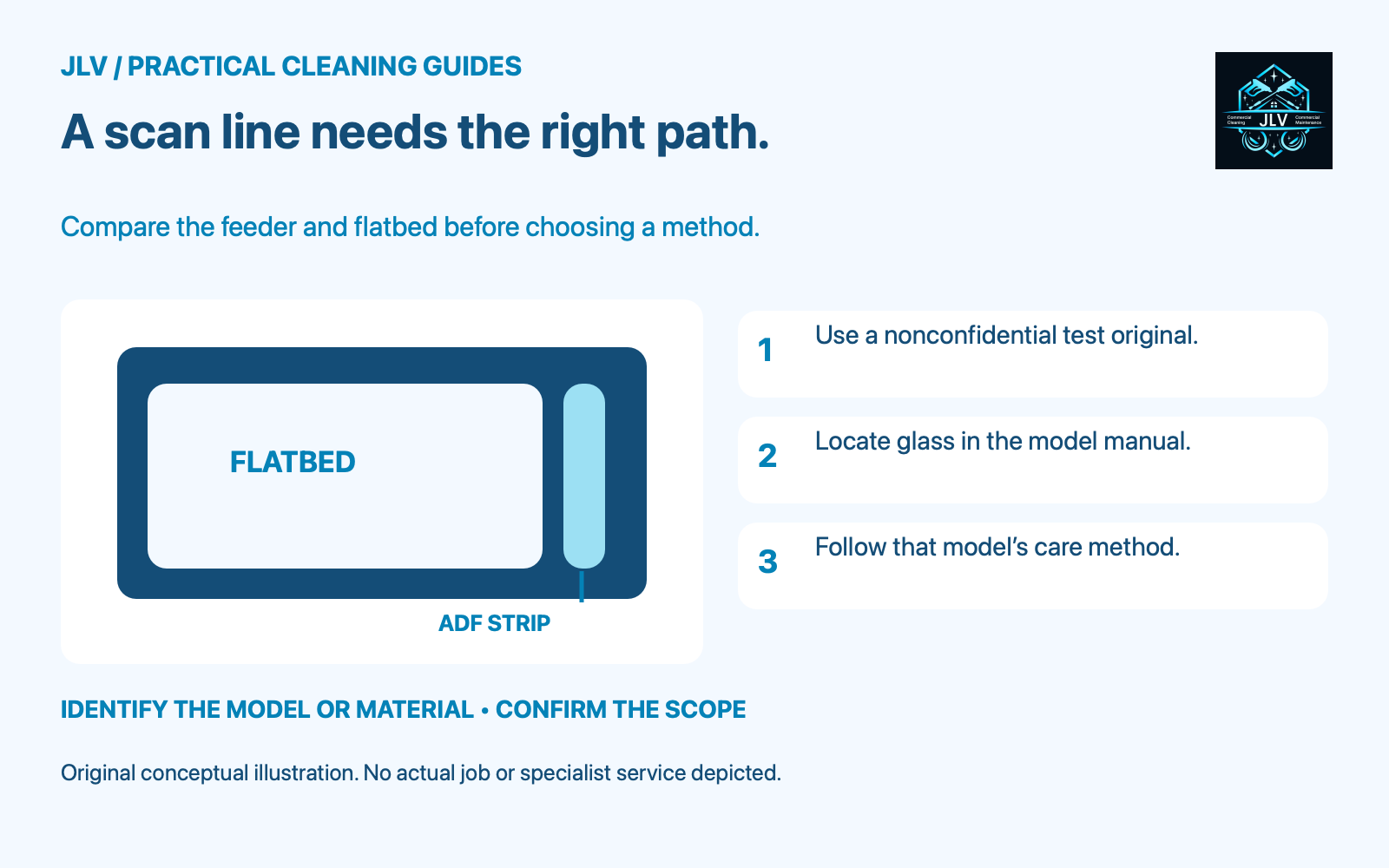
A line down a scanned page can come from contamination on the automatic document feeder’s scanning glass. Cleaning only the large flatbed may miss it. Before choosing a cloth or product, compare how the problem appears and find the glass locations in the machine’s own care guide.
Make a small comparison set
Ask the equipment owner to use a clean, nonconfidential test original. Inspect the original first so an existing mark is not mistaken for a machine problem. Keep the settings consistent where possible and label the results:
- A scan or copy made through the automatic document feeder, often called the ADF.
- A scan or copy of the same original placed on the large flatbed glass, if available.
- A normal computer print, if the device also prints, to show whether that output has a similar mark.
A feeder-only line makes the feeder’s separate scanning surface a sensible first place to inspect. A flatbed defect directs attention to that path. If ordinary computer printing also shows a problem, pass those samples to IT or the service provider rather than assuming glass cleaning will resolve everything. These comparisons narrow the report; they do not prove the cause.
Locate each surface on the actual model
Use the manual’s diagram to identify the broad scanner glass, the narrow ADF glass strip and any specified white backing surface. Some supported Brother models have another strip behind a user-accessible cover for the other scanning side. Do not assume every machine has it or open a panel based on another model’s picture.
Note whether the defect appears on one side or both sides of a two-sided job. Include that observation with the labeled test samples. It is more helpful than a ticket saying only that the copier is dirty.
Follow the model’s cleaning method
Clear documents and arrange the required shutdown with the equipment owner. Use the exact power-disconnection instructions. Confirm that the cleaning task is authorized before handling a shared device.
The permitted method varies. Canon’s TS9500 ADF guide specifies a soft, clean, lint-free dry cloth; Brother’s cited MFC-L2710DW-family guide specifies a soft lint-free cloth moistened with water for its identified surfaces. These are model examples, not interchangeable options. Do not add a glass cleaner or disinfecting wipe unless the actual device guidance permits it.
Clean only the accessible surfaces identified in that guide, with the prescribed cloth and gentle handling. Canon notes that glue, ink or correction-fluid residue on ADF glass can produce black streaks. If an adhered mark resists the permitted method, stop before improvising a scraper or stronger chemical.
Retest the same path and know when to stop
Once the guide’s drying, closure and restart steps are complete, repeat the same test. Keep the before-and-after pair. Record which surface was cleaned and which approved method was used, so another person does not repeat an unsuccessful treatment without knowing it.
If the line remains, describe whether it moved or changed and refer the issue to the equipment contact. A scratch, internal fault or another image-quality problem requires its own assessment. This workflow does not authorize internal repair or guarantee that cleaning will remove the line.
Keep scanner-glass care separate from routine wiping of printer buttons and surrounding furniture. When planning office cleaning with JLV, confirm which equipment surfaces are included and who handles the rest.