
Office cleaning
How to Clean Keyboards and Mice
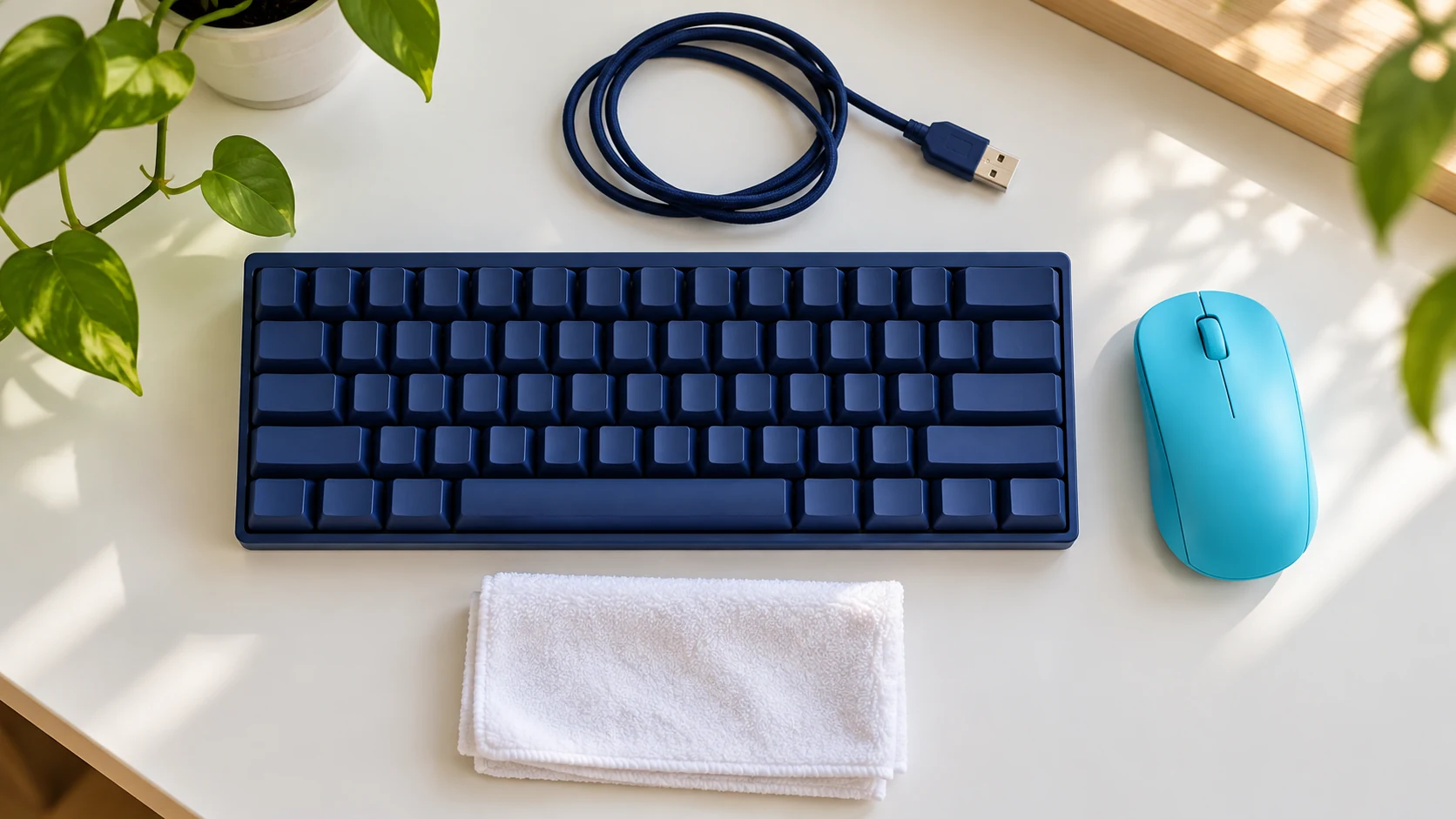
Quick answer
Power down and disconnect the keyboard or mouse as its manufacturer directs, then clean the exterior with the approved cloth and product. Keep moisture out of keys, sensors, seams, and ports. A sticky key after a liquid spill often needs IT assessment, not a wetter cloth or improvised disassembly.
Define the job before starting
This guide covers routine exterior cleaning of office peripherals. It does not cover internal repair, battery corrosion, flood damage, or taking apart a laptop. Ask the equipment owner or IT team to save work and confirm that the device can be disconnected. Shared devices may have an established cleaning protocol to follow.
Find the model and care instructions. A washable keyboard is a specific product design; an ordinary keyboard should not be treated as washable. Likewise, removable keycaps do not mean every staff member should remove them. Small clips, switches, and stabilizers are easy to damage or lose.
Gather a simple kit
- A clean soft lint-free cloth dedicated to electronics
- Manufacturer-approved wipes or cleaning product, if allowed
- The device's instructions for external debris removal
- A small clean tray for user-removable components, only if removal is approved
- A dry work area away from drinks and open cleaning buckets
Never mix cleaning products. Do not spray a peripheral directly, soak it, or push a wet cloth down between keys. Avoid choosing compressed air, cleaning putty, a vacuum, or a brush without confirming that the device maker permits that tool and method.
Clean external surfaces methodically
Photograph the device's position if several identical peripherals share a desk. Disconnect power or switch off wireless units according to the instructions. Remove user-removable batteries only when the device guide calls for it and there is no sign of damage or leakage.
Remove loose exterior debris using the approved method. Keep detached material away from neighboring keyboards and open ports. Do not insert metal tools beneath keys or into the mouse sensor.
Wipe the key tops, outer casing, mouse buttons, and reachable grip surfaces with the specified cloth and cleaner. Use controlled moisture and light pressure. Change to a fresh cloth area rather than moving grime from the mouse underside to the keyboard.
If disinfection is part of the facility plan, both the disinfectant label and device manufacturer must support the surface and method. Required wet contact time still applies. If that time cannot be achieved without violating the device's moisture limits, ask IT for a compatible approach rather than soaking the equipment or claiming an instant wipe disinfected it.
Allow the device to dry as directed before reconnecting it. Return batteries and components only in the approved way. Check ordinary operation with the owner, and report sticking keys, unusual heat, damaged wiring, or unreliable buttons.
Stop conditions
Liquid inside a device, swelling or leaking batteries, exposed wires, sparks, and a burning smell are not routine cleaning problems. Keep people away from the hazard and involve IT or facilities staff. Do not touch wet energized equipment or keep testing it.
Worn lettering and polished key surfaces may be permanent wear. Repeated abrasion will not restore them. Stop if a coating or printed label starts coming off.
Keep shared devices manageable
Assign responsibility and store approved supplies near the work area without creating spill risks. JLV can discuss broader office-cleaning routines and equipment boundaries in Orange County, Chino, and Ontario at /contact/.